

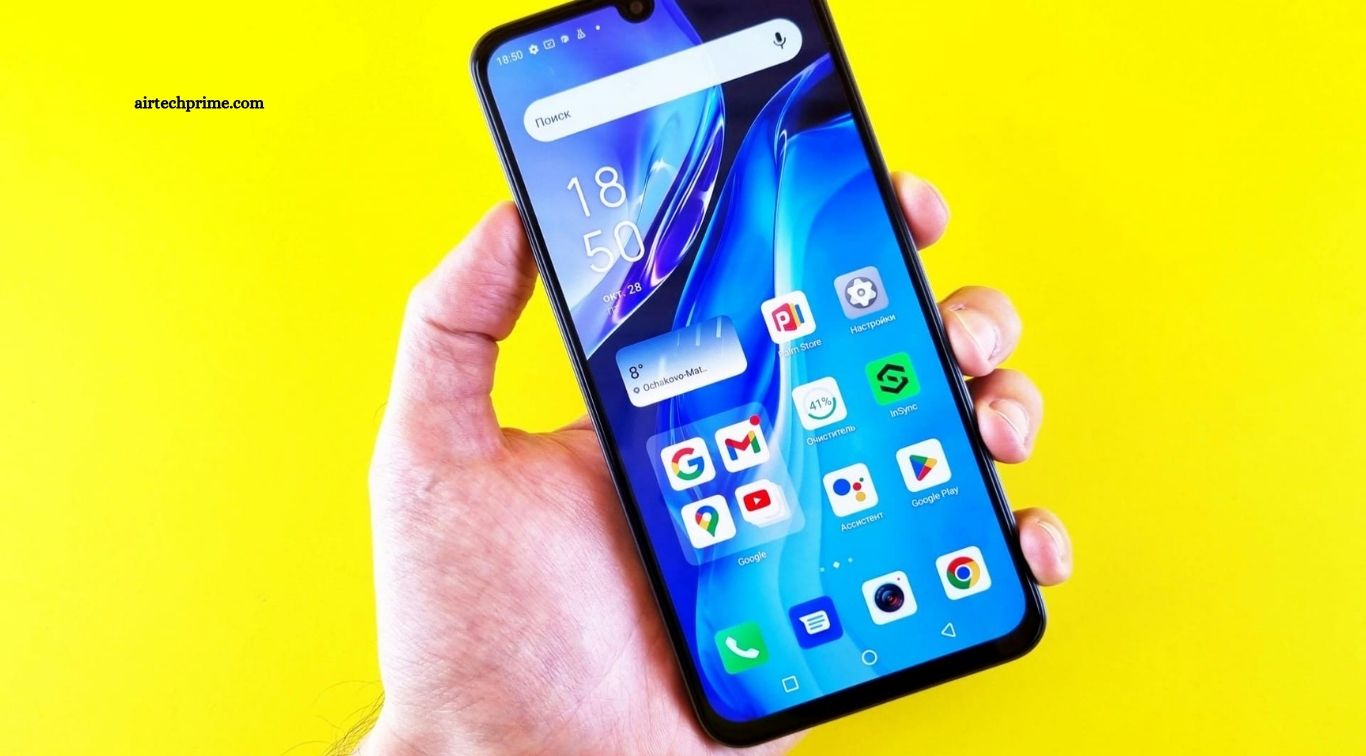
Gemini is now the default AI assistant on most Android phones in India, replacing the old Google Assistant. If you bought a Samsung, Pixel, OnePlus, Xiaomi or Vivo phone in the last year, Gemini is probably already on your device, waiting to be set up.
Yet many Indian users still do not know how to use it properly. They open the app once, ask a random question, and never return. That is a waste, because Gemini can do far more than answer trivia. It can write emails, summarise long articles, edit photos by describing the change, translate between Hindi and English, help with homework, plan a trip, and even talk to you live about what your camera sees.
This guide explains how to use Gemini AI on your Android phone in India, step by step, in simple language. We studied Google’s own support pages and Samsung India’s official Gemini guide, which are the top ranking sources for this topic, and turned their technical instructions into a practical guide for Indian users, including Hindi support, Jio offers and common problems. This guide explains how to use Gemini AI on Android step by step, from setup to voice commands and Gemini Live.
What Is Gemini and Is It Free in India?
Gemini is Google’s AI assistant. It is available as a free app on Android and iPhone in India, and it is also built into the Google app. The free version covers chat, voice conversations, image generation and photo editing, with daily limits on the most advanced features.
There is also a paid plan called Google AI Pro, which gives you higher limits and access to the most powerful Gemini models. In India, Jio has offered Google AI Pro free for 18 months to eligible users aged 18 and above, on an eligible plan. That offer is worth checking if you are a Jio user, but the free version is enough for most people.
Gemini supports Hindi, Bengali, Gujarati, Kannada, Malayalam, Marathi, Tamil, Telugu and Urdu, among other Indian languages. You can talk to Gemini in Hindi or Hinglish and it will understand you. Gemini Live, the voice conversation feature, is also available in several Indian languages including Hindi.
You need Android 10 or higher, at least 2GB of RAM, a Google account and an internet connection. Gemini needs the internet to work, because the AI processing happens on Google’s servers, not on your phone.
How to Set Up Gemini on Your Android Phone
Setting up Gemini takes about two minutes. Follow these steps.
Step 1: Open the Google Play Store, search for “Google Gemini” and install or update the app. On newer Pixel and Samsung phones, it may already be installed.
Step 2: Open the Gemini app and sign in with your personal Google account. A work or school account may not support all features.
Step 3: Grant the permissions Gemini asks for, including microphone and camera access. Without these, voice chat and Gemini Live will not work.
Step 4: Set Gemini as your default assistant. Open the Google app, tap your profile icon, go to Settings, then Google Assistant, then “Digital assistants from Google”, and choose Gemini. Confirm the switch. Now, long pressing the power button or saying “Hey Google” will open Gemini instead of the old Assistant.
Step 5: Turn on “Hey Google” detection if you want hands free use. Go to Settings, search for “Hey Google”, and follow the voice setup. You will need to say “Hey Google” a few times so the phone learns your voice.
That is the full setup. You are ready to use Gemini.
How to Chat with Gemini
The simplest way to use Gemini is to type or speak a question. Open the Gemini app or long press the power button, then type your question or tap the microphone and speak.
Here are examples that work well for Indian users.
For study: “Explain photosynthesis in simple Hindi for a Class 10 student.” Gemini will give you a clear explanation and you can ask follow up questions.
For work: “Write a polite email to my manager asking for two days leave for a family function.” Gemini will draft it, and you can ask it to make the tone more formal or shorter.
For daily life: “Plan a three day trip to Jaipur under Rs 15,000 for two people.” Gemini will suggest transport, stays and places to visit.
For translation: “Translate this sentence into Tamil: I will reach the station at 6 pm.” Gemini handles most Indian languages well.
The key to good answers is a clear prompt. Instead of “write about Diwali”, try “write a 200 word paragraph about Diwali for a school essay, in simple English”. The more specific you are, the better the answer.
How to Use Gemini Live
Gemini Live is the most impressive Gemini feature, and it is free. It lets you have a natural, back and forth voice conversation with Gemini, almost like talking to a person. You can interrupt it, change the topic, and ask it to explain things differently.
To start Gemini Live, open the Gemini app and tap the Live icon next to the microphone button. Then just start talking.
Gemini Live can also see what your camera sees. Tap the video button to share your camera, point it at something, and ask about it. For example, point it at a plant and ask “What plant is this and how do I care for it?” Point it at a maths problem and ask it to explain the steps. Point it at a sign in another language and ask for a translation.
You can also share your screen with Gemini Live, so it can see what is on your phone and help you with it. This is useful when you are stuck in an app or a settings menu.
Gemini Live is available to users aged 18 and above for some features, and it needs a stable internet connection. If it feels slow, switch from mobile data to Wi-Fi.
How to Use Gemini with Photos
Gemini can generate and edit images from your phone. This is one of the features most Indian users miss, because it is hidden inside the chat.
To generate an image, type a description in the chat, for example “a Diwali greeting card image with diyas and marigold flowers, warm colours”. Gemini will create the image, and you can ask it to change details.
To edit a photo, upload the photo to the chat and describe the change. For example, “remove the people in the background” or “make this photo brighter and sharper”. Gemini uses its Nano Banana image model for these edits, and the results are often surprisingly good for quick fixes.
Note that image editing is not available to users under 18, and realistic edits of real people should be labelled when you share them. Platforms in India and elsewhere now have rules about AI altered images of real people.
For a full comparison of AI photo editing apps, including Gemini, see our guide to the best AI photo editor apps in India on this site.
How to Use Gemini Across Your Apps
Gemini works with your Google apps, which makes it genuinely useful for daily tasks. It can check your Gmail, look at your Calendar, find a place on Google Maps, and summarise a YouTube video.
Try these commands.
“Check my Gmail for the train ticket I booked yesterday.” Gemini will find the email and show you the details.
“What is on my calendar tomorrow?” Gemini will list your events.
“Find a good vegetarian restaurant near Connaught Place.” Gemini will search Maps and suggest options.
“Summarise this YouTube video.” Open the video, long press the power button to open Gemini, and ask it to summarise. This saves a lot of time on long videos.
Gemini can also control your phone settings with voice commands. Try “turn on the flashlight”, “set a timer for 10 minutes”, “turn on Bluetooth”, or “read my WhatsApp messages”. For message reading, you need to allow notification access in settings.
Some of the newest features, like Gemini completing multi step tasks inside apps by itself, are rolling out gradually. Google says this screen automation feature is currently available on Pixel 10 and newer Samsung Galaxy phones in India, Japan, South Korea, the UK and the US. If you do not see it yet, it may not have reached your phone.
Gemini in Hindi and Other Indian Languages
One of Gemini’s biggest advantages in India is language support. You can talk to Gemini in Hindi, Hinglish, Tamil, Telugu, Bengali, Marathi, Gujarati, Kannada, Malayalam and Urdu.
To change the language, open the Gemini app, tap your profile icon, go to Settings, then Languages, and choose your preferred language. You can also just start typing in Hindi or Hinglish, and Gemini will usually reply in the same language.
This is useful for students who study in Hindi medium, for parents who are not comfortable in English, and for anyone who thinks better in their mother tongue. Try asking a question in Hindi and see how natural the answer feels.
Common Problems and Fixes
Problem: Gemini does not open when I long press the power button. Fix: Gemini may not be set as your default assistant. Follow the setup steps above, and check your phone settings for the power button action. On Samsung phones, the side button setting controls this.
Problem: “Hey Google” does not work. Fix: Open Settings, search for “Hey Google” or “Voice Match”, and retrain your voice. Make sure the microphone permission is on and you are not in a very noisy place.
Problem: Gemini gives wrong or outdated answers. Fix: Gemini can make mistakes, especially on current affairs, prices and local information. Ask it to check the web, or verify important facts from an official source before you act on them.
Problem: Gemini Live is not available. Fix: Update the Gemini app and the Google app from the Play Store. Some features roll out gradually, so they may not have reached your phone or account yet.
Problem: Gemini uses too much mobile data. Fix: Use Gemini on Wi-Fi for long conversations, image generation and Gemini Live. Voice chats and camera sharing use more data than text chat.
Is Gemini Safe? Privacy Tips
Gemini processes your requests on Google’s servers, and your activity may be saved to your Google account unless you turn off Gemini Apps Activity in settings. If you are concerned about privacy, review this setting and turn it off.
Avoid sharing sensitive information with Gemini, such as your full bank details, OTPs, passwords, Aadhaar number or PAN number. Gemini is a helpful assistant, but it is not a safe place to store private information.
Be careful with permissions. Gemini needs microphone and camera access to work well, but you can turn these off when you are not using it. Check which apps have access to your microphone in Settings, Apps, Permissions.
For children, note that some Gemini features require users to be 13 or older, and some advanced features require 18 or older. If your child uses your phone, consider using Family Link controls.
Frequently Asked Questions
Is Gemini free in India?
Yes. The Gemini app is free to download and use in India, with daily limits on advanced features. Google AI Pro is the paid plan, and Jio has offered it free for 18 months to eligible users.
How do I activate Gemini on my Android phone?
Long press the power button, or say “Hey Google”, or open the Gemini app. If the old Google Assistant opens instead, set Gemini as your default assistant in the Google app settings.
Does Gemini work in Hindi?
Yes. Gemini supports Hindi and several other Indian languages, including Bengali, Tamil, Telugu, Marathi, Gujarati, Kannada, Malayalam and Urdu. You can type or speak in Hindi and Gemini will reply in Hindi.
Can Gemini edit photos?
Yes. Upload a photo to Gemini and describe the change you want, for example “remove the background” or “make it brighter”. Image editing is not available to users under 18.
Is Gemini better than ChatGPT?
It depends on what you need. Gemini works better with Google apps like Gmail, Calendar and Maps, and it is built into Android. ChatGPT is stronger for long writing and coding tasks. Many Indian users keep both apps and use each for different jobs.
Does Gemini work without internet?
No. Gemini needs an active internet connection to process your requests, because the AI runs on Google’s servers.
Conclusion
Gemini is no longer a new experiment. It is the default AI assistant on Android in India, it speaks your language, and it is free. The top ranking guides we studied explain the setup steps well, but they rarely cover the Indian details that matter, like Hindi support, Jio offers, and the practical commands Indian users actually need. That is the gap this guide fills.
Set Gemini as your default assistant today, try Gemini Live with your camera, and ask it to help with one real task, like drafting an email or planning a trip. Once you see what it can do, you will wonder how you managed without it. And remember, Gemini can make mistakes, so verify important facts before you act on them. Once you know how to use Gemini AI on Android, it can handle messages, photos and reminders without opening another app.

6 Comments
Pingback: How to Start a Tech Blog in India 2026: 7 Steps
Pingback: WhatsApp Tips and Tricks in India 2026: 12 Features
Pingback: Best AI Video Generator App in India 2026
Pingback: Best Smartwatch Under 3000 in India 2026
Pingback: Best 5G Smartphone Under 15000 in India: 6 Picks
Pingback: How to Increase Battery Life on Android Phone