

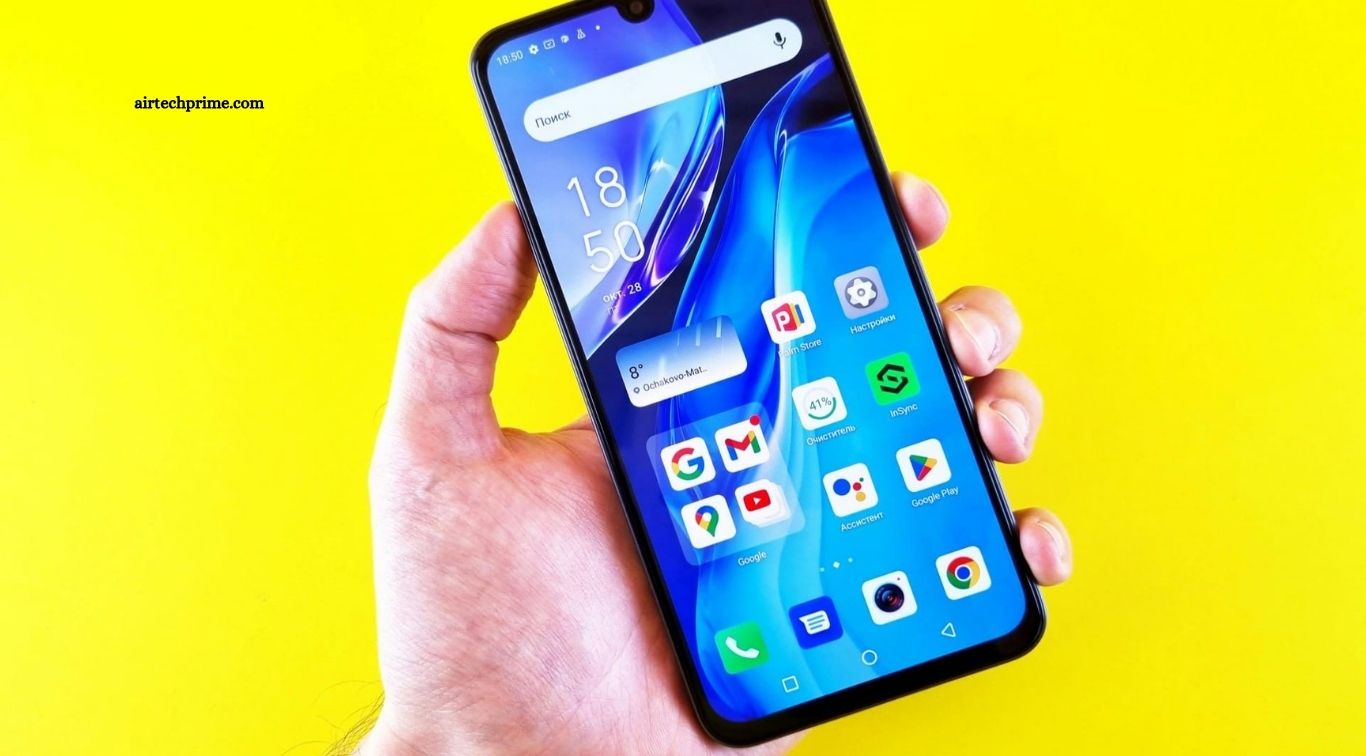
Android smartphones offer many useful features that make everyday tasks easier, improve privacy, and boost productivity. However, many users only explore basic settings and overlook powerful tools hidden inside their devices. Learning these hidden Android tips and tricks can help you customize your phone, save time, manage notifications, and enjoy a smoother smartphone experience.
Whether you use Samsung, Google Pixel, Xiaomi, Redmi, or another Android device, several useful features may be available on your phone. Although settings and feature names vary between Android versions and manufacturers, discovering these tools can help you get more value from your device without installing unnecessary applications.
Read More: AI Solutions That Make Everyday Tasks Easier
Customize Quick Settings for Faster Access
Quick Settings allow you to control essential phone features without navigating through multiple menus. By swiping down from the top of your screen, you can access options such as Wi-Fi, Bluetooth, airplane mode, screen recording, and battery saver. Many Android devices let you customize this panel according to your daily needs.
To personalize Quick Settings, swipe down twice and tap the edit or pencil icon if available. Drag your most-used tiles into convenient positions and remove unnecessary shortcuts where supported. This simple adjustment makes frequently used settings easier to reach and helps you control your phone more efficiently.
Use Split-Screen Mode for Multitasking
Split-screen mode allows you to run two compatible applications simultaneously. For example, you can watch a video while taking notes, read a document while replying to messages, or compare information between two apps. This feature is particularly useful for students, professionals, and anyone who regularly switches between applications.
To use split-screen mode, open your recent apps screen and tap the app icon or menu above a compatible application. Select the split-screen option if your device supports it, then choose a second app. Some applications do not support split-screen mode, and the exact steps may differ depending on your Android version.
Enable One-Handed Mode
Large smartphone displays provide more screen space, but reaching the top corners can become difficult when using your phone with one hand. One-handed mode reduces the usable screen area or shifts the interface downward, making important controls easier to reach without changing your device.
To enable this feature, open Settings and search for “One-handed mode.” If available, activate it and follow the instructions for your device. Some manufacturers provide their own alternatives through accessibility or gesture settings. This feature can make messaging, browsing, and other everyday activities more comfortable, especially on larger smartphones.
Improve Battery Life with Hidden Settings
Battery life is one of the most important concerns for smartphone users. Android includes several tools that help reduce unnecessary power consumption, including Battery Saver, background activity controls, and battery usage reports. These features can help you identify applications that consume more energy than expected.
Open Settings and navigate to Battery to review available options. Enable Battery Saver when needed, reduce screen brightness, and check which apps use the most power. You can also limit background activity for selected applications when appropriate. Keep in mind that aggressive restrictions may delay notifications or affect certain app features.
Use Digital Wellbeing to Control Screen Time
Digital Wellbeing helps Android users understand their phone habits and manage the time spent on applications. Depending on your device, it can display screen-time statistics, notification counts, app usage, and other activity information. These insights can help you recognize distractions and establish healthier digital routines.
Open Settings and search for “Digital Wellbeing.” Explore features such as app timers, Focus mode, and Bedtime mode where available. App timers can limit usage of selected applications, while Focus mode can pause distracting apps temporarily. These tools help you stay focused on work, study, or personal activities without relying entirely on willpower.
Protect Your Privacy with App Permissions
Many applications request access to your camera, microphone, location, contacts, and photos. Reviewing these permissions helps you understand what information apps can access and reduces unnecessary exposure of personal data. Android provides permission controls that allow you to adjust access according to your preferences.
Open Settings and look for Privacy, Permission Manager, or App Permissions. Review each category and remove access that an application does not need. On supported versions, you can also grant location access only while using an app or allow temporary photo access. Review permissions periodically, especially after installing unfamiliar applications.
Use Guest Mode or Multiple User Profiles
If you occasionally lend your phone to a family member, friend, or colleague, additional user profiles can help keep your personal information separate. Supported Android devices may offer Guest mode or multiple user accounts, providing separate spaces for applications, settings, and certain personal data.
To check availability, open Settings and search for “Multiple users” or “Guest mode.” Follow the available setup instructions if your device supports these features. Guest access can be useful when someone needs to make a call or browse the internet without accessing your main profile. Remember that not all Android phones offer this functionality.
Enable Find My Device for Better Security
Losing a smartphone can expose personal photos, messages, accounts, and other sensitive information. Android’s Find My Device features can help users locate supported devices, play a sound, secure a lost phone, or erase its data when the necessary conditions are met.
Open Settings and search for “Find My Device” or the relevant device-finding option available on your phone. Ensure the feature is enabled, location services are configured appropriately, and your Google account is protected. Available recovery options depend on device settings, connectivity, account access, and supported services, so review the setup before an emergency occurs.
Take Screenshots Using Faster Methods
Screenshots are useful for saving important messages, capturing instructions, and sharing information. Many Android phones support the standard Power and Volume Down button combination, while some manufacturers offer additional methods such as gestures, palm swipes, or quick settings shortcuts.
Check your phone’s screenshot settings to discover the available options. Some devices also support scrolling screenshots, allowing you to capture longer webpages or conversations in a single image. Before sharing screenshots, review them for passwords, private messages, financial details, or other sensitive information that should remain confidential.
Use Nearby Sharing for Quick File Transfers
Android supports convenient file-sharing options that let you transfer photos, documents, videos, and other files between compatible devices. Quick Share, available on supported Android devices, can simplify transfers without requiring you to send every file through email or messaging applications.
To use Quick Share, select a file, tap Share, and choose Quick Share if available. Follow the prompts to select a nearby recipient and complete the transfer. Bluetooth and Wi-Fi may be used to discover devices and transfer content. For privacy, review your visibility settings and allow sharing only with people or devices you trust.
Make Your Phone Easier to Use with Accessibility Features
Android accessibility features are useful for people with different visual, hearing, mobility, or interaction needs. Features such as magnification, text scaling, Live Caption on supported devices, and voice access can improve usability and make common activities more convenient.
Open Settings and search for “Accessibility” to explore the options available on your phone. You can increase text size, magnify screen content, enable captions, or configure supported voice controls. These tools can also help users who simply prefer a more comfortable display or hands-free interaction during certain activities.
Use Smart Lock and Extend Unlock Carefully
Some Android devices offer Extend Unlock, formerly associated with Smart Lock features, which can keep a phone unlocked under selected trusted conditions. Depending on the device and Android version, supported options may include certain trusted places, connected devices, or on-body detection.
To check your options, search Settings for “Extend Unlock” or “Smart Lock.” Follow the available instructions and review the security implications before activating any feature. A phone that remains unlocked under trusted conditions may be more convenient, but it can also create privacy risks if another person gains physical access to your device.
Clear App Cache to Troubleshoot Problems
Applications sometimes become slow, display unexpected errors, or use more storage than expected. Clearing an app’s cache can help resolve certain temporary problems by removing stored temporary files without normally deleting the app’s main data.
To clear the cache, open Settings, select Apps, choose the relevant application, and look for Storage or Storage and cache. Tap Clear cache if the option is available. Avoid selecting Clear storage or Clear data unless you understand the consequences, because these options may remove local settings, saved files, or account information.
Customize Notifications for Fewer Distractions
Frequent notifications can interrupt work, study, and personal time. Android allows users to control which applications send alerts, how notifications appear, and whether selected conversations or categories can interrupt them. These options make it easier to receive important updates without unnecessary distractions.
Open Settings and navigate to Notifications or App Notifications. Disable unnecessary alerts, adjust lock-screen visibility, and configure notification categories where supported. You can also use Do Not Disturb to silence selected interruptions during meetings, sleep, or focused work. Review the exceptions carefully so important calls or urgent alerts are not unintentionally blocked.
Use Voice Typing to Write Faster
Voice typing allows you to dictate messages, notes, emails, and other text instead of typing every word manually. Many Android keyboards, including Gboard, offer microphone-based dictation that can recognize spoken words and convert them into text.
Open a compatible keyboard in any text field and tap its microphone icon to begin dictating. Speak clearly and review the resulting text before sending it. Punctuation support, language availability, and offline functionality depend on your keyboard and device settings. Avoid dictating confidential information in situations where others can hear you.
Discover Useful Features with Settings Search
Android settings menus can contain hundreds of options, making it difficult to locate a specific feature. The built-in search bar provides a faster way to discover settings without manually opening each menu.
Open Settings and enter a term such as “battery,” “screen recording,” “permissions,” or “dark theme.” Review the matching results and select the appropriate option. This method is especially helpful when manufacturers use different menu structures or feature names. If a setting does not appear, your device may not support that feature or may use a different label.
Tips for Using Android Features Safely
Exploring hidden Android features can improve convenience, privacy, and productivity, but changing unfamiliar settings without understanding their purpose can create problems. Before enabling advanced features, read their descriptions and confirm that they are supported by your phone. Download applications only from trusted sources and keep your operating system and apps updated.
Protect your device with a strong screen lock, review application permissions regularly, and enable suitable device-recovery options. Avoid disabling security protections simply to access additional customization. By combining useful Android shortcuts with responsible security practices, you can enjoy a smoother and safer smartphone experience.
Frequently Asked Questions
What are the best hidden Android features?
Split-screen mode, app permission controls, Digital Wellbeing, battery optimization, and Quick Settings customization are useful features to explore.
How can I improve Android battery life?
Enable Battery Saver, reduce screen brightness, and review applications with high background power usage.
Can I use these Android tips on every phone?
Most tips apply broadly, but availability and instructions vary by manufacturer, Android version, and device model.
How can I protect my Android phone?
Use a strong screen lock, review app permissions, enable device-finding features, and install security updates.
How do I find hidden settings on Android?
Open Settings and use its search bar to find features by name or keyword.
Conclusion
Hidden Android tips and tricks can help you use your smartphone more effectively without purchasing a new device or installing unnecessary applications. From split-screen multitasking and battery optimization to privacy controls, accessibility tools, and faster file sharing, Android offers many features that simplify everyday activities. The best approach is to explore your phone’s settings gradually and focus on features that solve your actual needs.

1 Comment
Pingback: Windows Tips and Tricks to Boost Productivity - AirTechPrime