

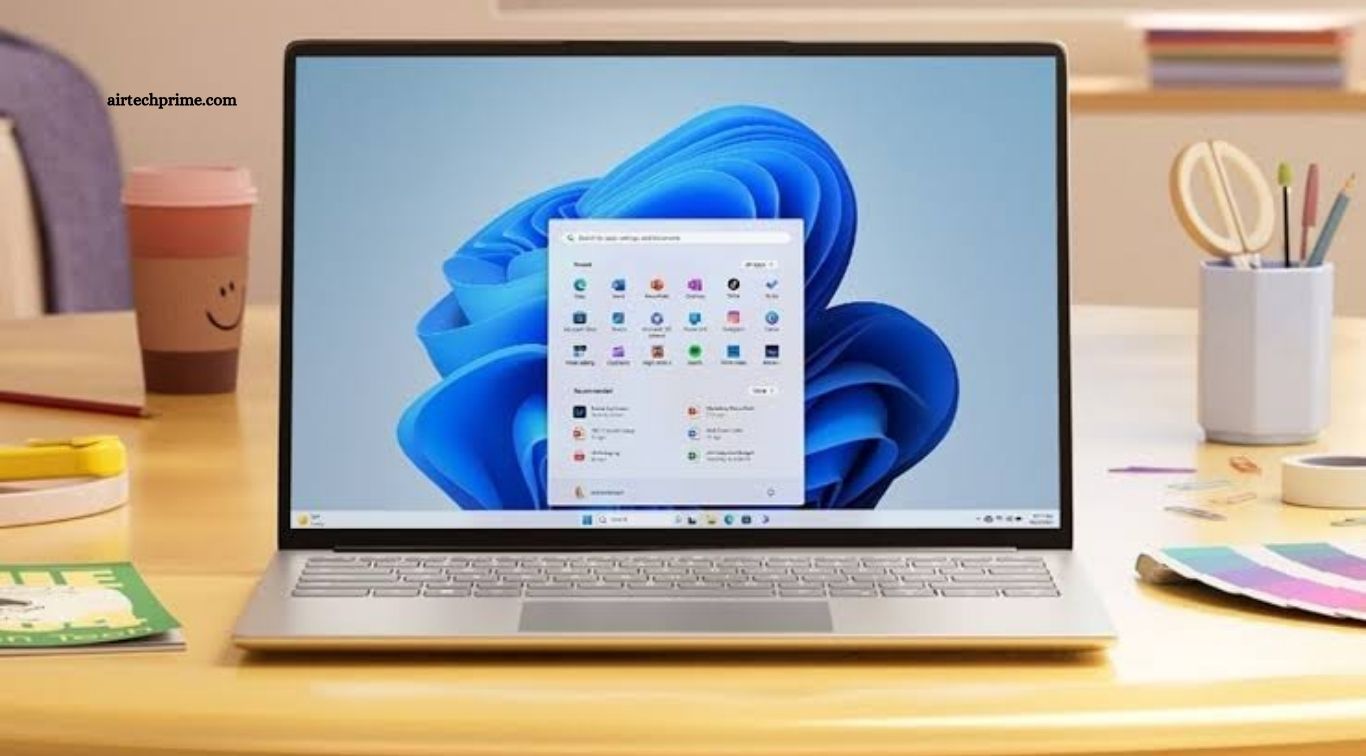
Windows offers a wide range of features designed to help users work faster, organize tasks, and manage their computers more efficiently. However, many people use only basic functions and overlook shortcuts, built-in tools, and customization options that can significantly improve productivity. Learning the right Windows tips and tricks can save time, reduce distractions, and make everyday computer tasks easier.
Whether you use Windows 10 or Windows 11, simple adjustments can improve your workflow without requiring expensive software. From keyboard shortcuts and virtual desktops to file management and performance optimization, these practical techniques help students, professionals, freelancers, and business owners get more done with less effort.
Read More: Hidden Android Tips and Tricks You Should Know
Master Essential Windows Keyboard Shortcuts
Keyboard shortcuts are among the easiest ways to boost productivity on a Windows computer. Instead of repeatedly navigating menus with a mouse, you can perform common actions with a few keystrokes. Shortcuts such as Ctrl + C for copying, Ctrl + V for pasting, and Ctrl + Z for undoing help speed up everyday tasks.
Other useful shortcuts include Windows + E to open File Explorer, Windows + I to open Settings, and Windows + L to lock your computer. Learning these combinations gradually can reduce unnecessary clicks and make your workflow smoother. Start with the shortcuts you use most frequently, then add more as your familiarity grows.
Use Virtual Desktops to Organize Your Work
Virtual desktops allow you to separate different activities into individual workspaces. For example, you can keep office applications on one desktop, research tabs and documents on another, and personal tasks on a third. This arrangement reduces clutter and helps you focus on the work that matters most.
To create a virtual desktop, press Windows + Tab and select the option to add a new desktop. You can switch between desktops using Windows + Ctrl + Left Arrow or Windows + Ctrl + Right Arrow. Windows 11 also offers desktop customization options on supported versions, making it easier to distinguish workspaces according to your needs.
Improve Multitasking with Snap Layouts
Managing several open applications can become difficult when windows overlap or cover important information. Windows includes window-snapping features that help arrange applications side by side. This makes it easier to compare documents, attend online meetings while taking notes, or work with spreadsheets and browsers simultaneously.
On Windows 11, hover over the maximize button or press Windows + Z to explore Snap Layouts. Choose a layout that fits your workflow and place applications in the available spaces. Windows 10 also supports snapping windows by dragging them to screen edges or using Windows + Arrow keys, although some layout options differ between versions.
Use Clipboard History to Save Time
The Windows clipboard temporarily stores copied text, images, and other supported content. Clipboard history extends this functionality by allowing you to access multiple previously copied items instead of keeping only the most recent one. This feature is especially helpful when preparing reports, transferring information, or working with repeated text.
To enable clipboard history, press Windows + V and select the option to turn it on if prompted. After activation, use the same shortcut to view available clipboard items and select the content you want to paste. Be careful when copying passwords, financial details, or confidential information, as clipboard history may retain sensitive content until it is removed.
Keep Your Files Organized with File Explorer
An organized file system helps you locate documents quickly and avoid wasting time searching through cluttered folders. File Explorer provides tools for creating folders, sorting files, searching by name, and accessing frequently used locations. Establishing a consistent folder structure makes it easier to manage projects, downloads, images, and work documents.
Create clearly named folders for different subjects or projects, and use descriptive filenames that make documents easy to identify. You can also pin frequently accessed folders to Quick Access or use the search field in File Explorer to locate specific items. Regularly reviewing the Downloads folder and removing unnecessary files helps maintain a cleaner workspace.
Use Windows Search More Effectively
Windows Search helps you locate applications, settings, files, and other information without opening multiple menus. Instead of browsing through folders or searching manually, press the Windows key and begin typing the name of the item you need. This approach can save time when launching frequently used applications or accessing specific system settings.
For better results, use precise search terms such as an application name, document title, or setting keyword. If a file is difficult to locate, search using a distinctive word from its name. Search results depend on indexing settings and file locations, so checking your indexing options may help when certain documents do not appear as expected.
Customize the Start Menu and Taskbar
The Start menu and taskbar provide quick access to the applications and tools you use most frequently. Personalizing these areas reduces the time spent searching for programs and helps create a workspace suited to your routine. Pinning essential applications and removing unnecessary shortcuts can make your desktop more organized.
On Windows 11, you can pin applications to Start or the taskbar and adjust several taskbar preferences through Settings. Windows 10 offers similar pinning options, although its Start menu has a different layout. Keep commonly used tools accessible, organize your shortcuts thoughtfully, and avoid adding so many icons that finding the right application becomes difficult.
Use Focus Sessions and Do Not Disturb
Notifications, messages, and frequent alerts can interrupt concentration throughout the workday. Windows includes features that help reduce distractions by limiting notifications during important tasks. Depending on your Windows version, you can configure Do Not Disturb settings or use Focus sessions through the Clock application or related productivity features.
Open Settings and search for Focus or Notifications to explore available options. Set aside dedicated periods for writing, studying, or completing complex tasks, and silence nonessential alerts during those periods. You can also schedule breaks between work sessions to maintain concentration without becoming overwhelmed by long periods of continuous screen time.
Manage Startup Apps to Improve Performance
Some applications launch automatically when Windows starts, increasing startup time and using system resources in the background. Reviewing startup applications can help your computer start faster and reduce unnecessary background activity. This is particularly useful on devices that feel slow immediately after signing in.
Open Task Manager by pressing Ctrl + Shift + Esc, then navigate to the Startup apps or Startup tab, depending on your Windows version. Review the listed programs and disable unnecessary applications that you recognize. Avoid disabling unfamiliar system components or essential security software, as doing so could affect important functions.
Use Storage Sense to Free Up Disk Space
Low storage space can make file management difficult and limit your ability to install applications or download important documents. Windows provides storage management tools that help identify temporary files and unnecessary data. Storage Sense can automatically remove certain temporary files and manage items in locations such as the Recycle Bin according to your selected settings.
On supported versions, open Settings, select System, and navigate to Storage to find Storage Sense. Review its configuration before enabling automatic cleanup, especially if you keep important files in the Downloads folder. You can also use the temporary files section to identify items that are safe to remove, helping maintain available disk space.
Use PowerToys for Advanced Productivity
Microsoft PowerToys is a collection of optional utilities designed to improve the Windows experience. Depending on the installed version, its tools may include advanced window management, bulk file renaming, color selection, keyboard remapping, and other workflow enhancements. These utilities can be particularly useful for developers, designers, researchers, and users who perform repetitive computer tasks.
Download PowerToys through an official Microsoft source, such as its Microsoft Store listing or official GitHub repository. Explore the available utilities and enable only the ones that suit your needs. For example, FancyZones can help organize complex window layouts, while PowerRename can simplify renaming multiple files. Reviewing each tool’s settings helps ensure it fits your workflow.
Create a More Comfortable Display Setup
A comfortable display can help reduce visual strain during long computer sessions. Windows offers options for changing screen resolution, scaling, text size, brightness, and color appearance. Adjusting these settings can improve readability and make applications easier to use, particularly when working with high-resolution monitors or multiple displays.
Open Settings and navigate to System, then Display, to review available options. Use the recommended resolution when appropriate, adjust scaling if text appears too small, and enable Night light if warmer screen colors feel more comfortable in the evening. Proper monitor positioning, suitable room lighting, and regular breaks can also contribute to a more comfortable working environment.
Use Snipping Tool for Faster Screenshots
The Snipping Tool makes it easy to capture selected areas of your screen without taking a screenshot of the entire desktop. This is useful when creating tutorials, documenting technical issues, sharing instructions, or adding visual references to presentations. Depending on your Windows version, the tool may also offer screen recording and annotation features.
Press Windows + Shift + S to open the screen capture interface on supported Windows versions. Select the area or window you want to capture, then use the notification or Snipping Tool application to review and save the result. Before sharing screenshots, check for private messages, account details, or confidential information that should not be visible.
Automate Repetitive Tasks
Automating repetitive activities can save time and reduce manual errors. Windows supports several automation options, including scheduled tasks, Power Automate, batch scripts, and other tools suited to different technical skill levels. These options can help with recurring file operations, routine reminders, and certain administrative workflows.
Begin by identifying tasks that follow the same steps every time, such as organizing downloaded files or processing recurring documents. Choose an automation tool that matches the task’s complexity and test it with nonessential files before using it on important data. Keep backups of critical documents and review automated actions regularly to ensure they continue working as expected.
Keep Windows Updated and Secure
System updates help maintain compatibility, improve reliability, and address known security vulnerabilities. An outdated operating system may miss important fixes or struggle with newer applications and devices. Keeping Windows and installed software updated is an essential part of maintaining a dependable computer for work and everyday use.
Open Settings and navigate to Windows Update to check for available updates. Save important work before installing updates, and restart your computer when required. Use reputable security software, enable suitable account protection, and back up important files regularly. Windows 10’s standard support ended on October 14, 2025, so users should check their upgrade eligibility or available extended security options if they still use it.
Learn Useful Accessibility Shortcuts
Windows accessibility features can make everyday computer tasks easier for users with different needs. Tools such as Magnifier, Narrator, voice typing, text-size controls, and color filters provide additional ways to interact with the operating system. These features can also help users who prefer larger text, voice input, or alternative navigation methods.
Press Windows + U to open Accessibility settings on supported Windows versions. You can also use Windows + Plus (+) to launch Magnifier and Windows + H to access voice typing where supported. Explore the available options and customize them according to your preferences. Small adjustments can make your computer more comfortable and efficient to use throughout the day.
Frequently Asked Questions
What are the best Windows shortcuts for productivity?
Windows + E opens File Explorer, Windows + I opens Settings, and Windows + V opens clipboard history.
How can I make my Windows computer faster?
Disable unnecessary startup apps, free up storage space, install updates, and close applications you do not need.
How do I multitask more efficiently in Windows?
Use Snap Layouts, virtual desktops, and keyboard shortcuts to organize applications and switch between tasks quickly.
Is Microsoft PowerToys useful?
Yes. PowerToys provides optional utilities for window management, file renaming, keyboard customization, and other productivity tasks.
How can I reduce distractions on Windows?
Use Focus sessions or Do Not Disturb settings to limit nonessential notifications during important work.
Conclusion
Windows tips and tricks can significantly improve productivity by simplifying everyday tasks, organizing digital workspaces, and reducing unnecessary interruptions. Keyboard shortcuts, virtual desktops, clipboard history, Snap Layouts, and improved file management are practical starting points for anyone who wants to work more efficiently. Additional tools such as PowerToys and Focus sessions can provide further benefits as your needs grow. The most effective approach is to adopt a few useful features at a time and make them part of your routine.
